Extract Text from Images and Scanned PDFs on Mac, Offline
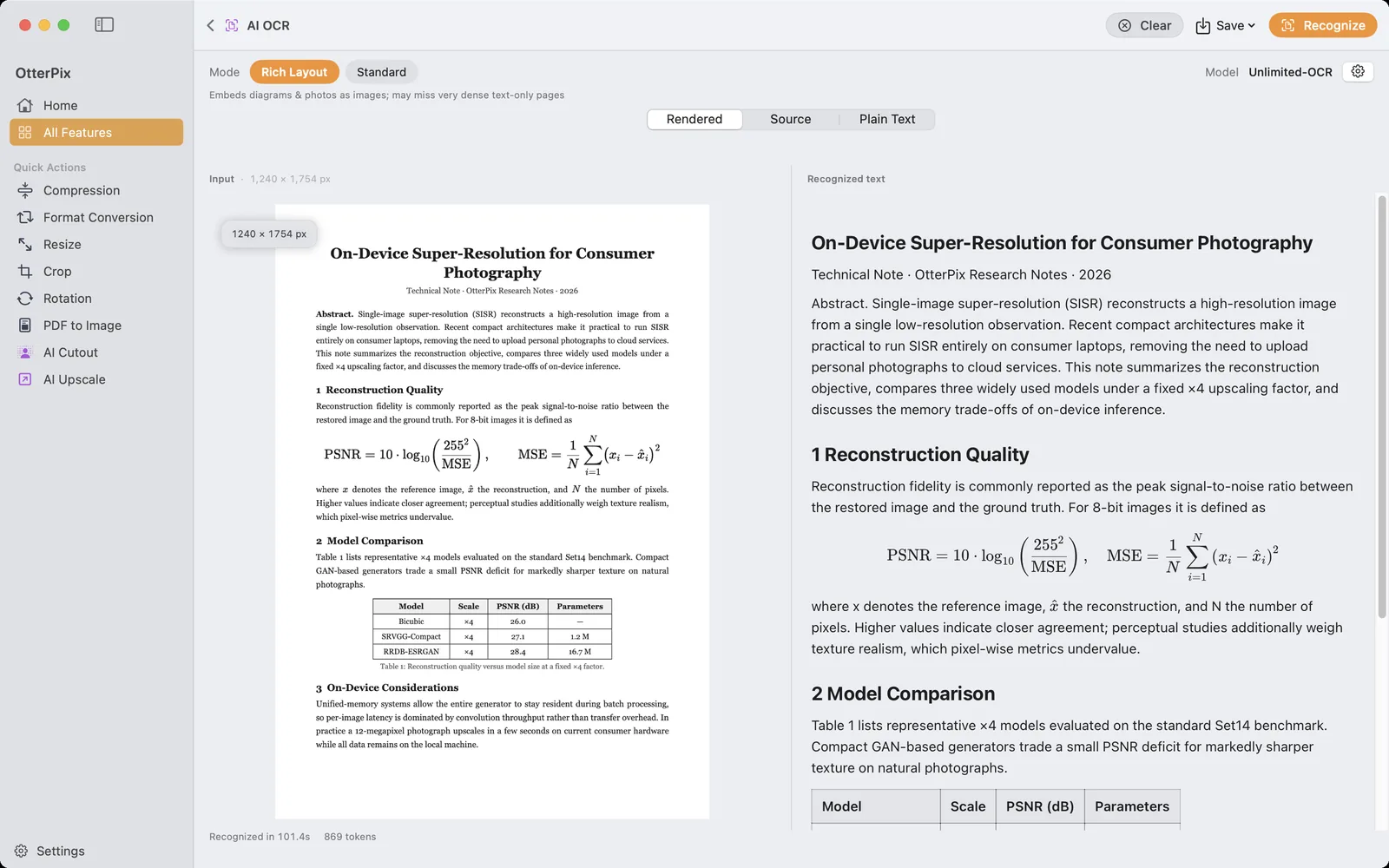
Someone sends you a scanned report, an exam sheet photographed on a phone, or a 40-page paper as a PDF made of page images. You need one paragraph, a table, or the whole thing as text, and none of it can be selected. Retyping is slow and error-prone; online OCR services want you to upload a document that may be confidential.
OtterPix includes AI OCR, a document recognizer that runs entirely on your Mac. Drop in a page image or a PDF and you get structured Markdown back: headings, paragraphs, tables as real tables, formulas, and the figures on the page. The tool is free, has no daily limit, and after a one-time model download it works without an internet connection.
What AI OCR is built for
AI OCR reads documents: academic papers, scanned letters and reports, exam sheets and forms, screenshots of text, and multi-page PDFs. It understands page structure, so a two-level heading stays a heading, a table comes out with its rows and columns, and formulas are kept in LaTeX notation rather than flattened into a string of symbols.
It is not a reader for arbitrary photos. Street signs, product shots and memes are outside what the model was built for and can produce unreliable output. If your source is a page of text, it is the right tool; if it is a scene with some words in it, it is not.
How to extract text from a scan or PDF
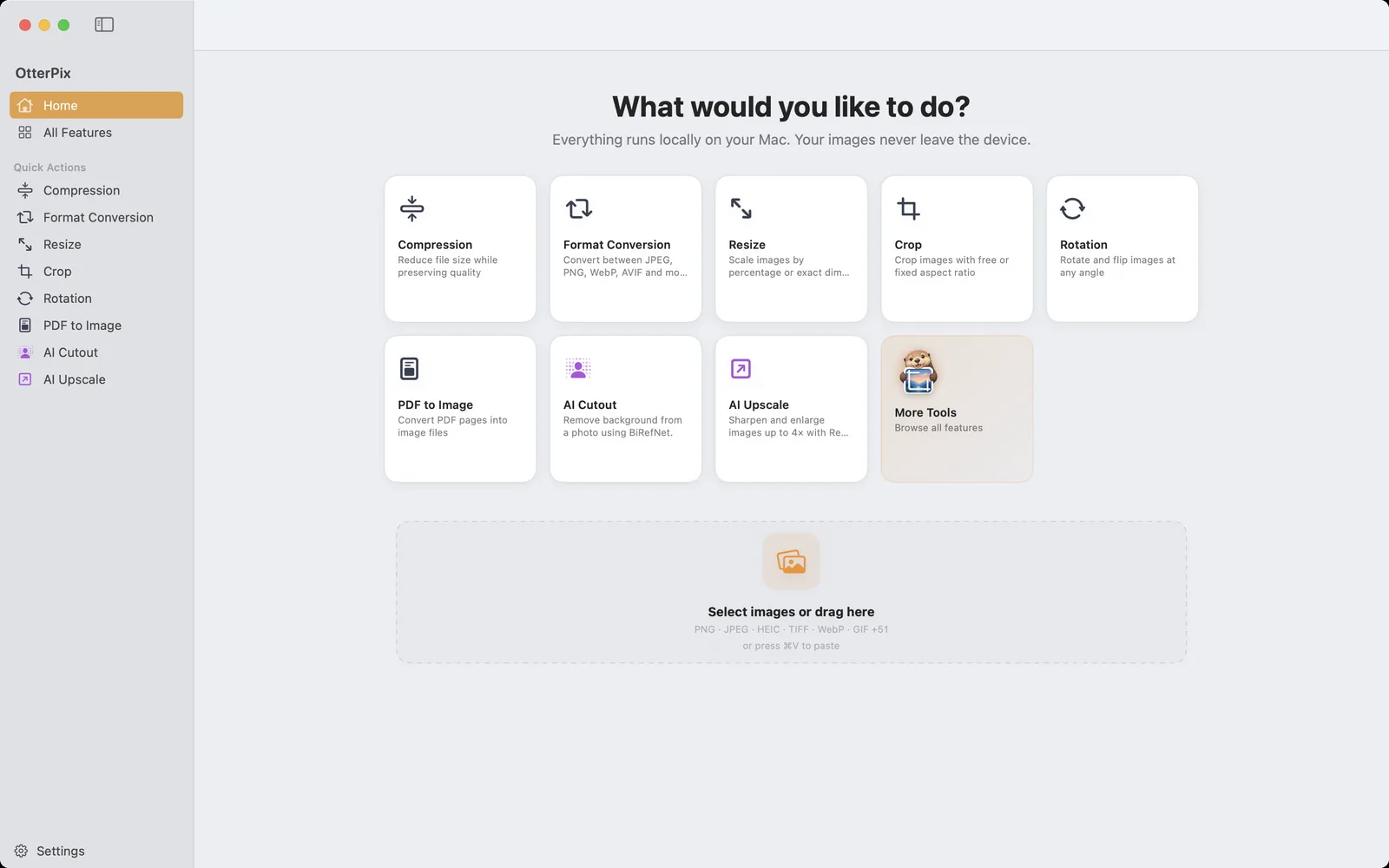
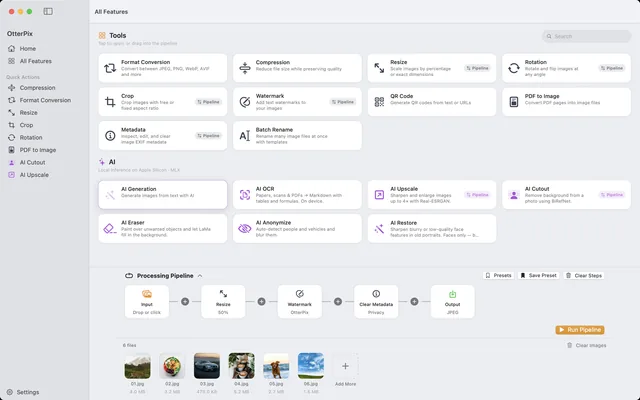
- Open OtterPix, click All Features in the sidebar and choose AI OCR. The empty page reads “Drop a document or PDF to start.”
- Drop in a page image (a scan, a photo of a page, a screenshot) or a PDF. For a PDF, the tool shows the page count and a Pages control with From and To fields, so you can recognize the whole document or only a chapter.
- Pick the Mode: Rich Layout (the default) or Standard. The next section explains which one to use.
- Click Recognize. On first use, OtterPix asks for the recognition model: click Open Settings and download it once. Progress is shown per page, for example “Parsing page 3 of 12”.
- Read the result in Rendered, Source or Plain Text. Switching between these views does not run the model again.
- Open the Save menu and choose Export as Markdown (.md), Export as plain text (.txt) or Copy all. ⌘S exports Markdown directly.
Rich Layout or Standard: choosing the mode
- Rich Layout is the default and the right choice for most documents. It embeds diagrams and photos from the page as images in the output, which suits papers, reports and pages that mix text with figures. On an unusually dense page of nothing but text it can miss parts.
- Standard focuses on text, tables and formulas and skips complex figures. Use it for very dense pages such as exam sheets and forms.
You don’t have to guess in advance. If some pages come back nearly empty, OtterPix shows “Some pages came out nearly blank — they may suit the other mode.” with a button that re-runs the same document in the other mode.
The three views are separate from the mode. Rendered shows the formatted document with figures in place, Source shows the raw Markdown, and Plain Text strips the formatting. Copying from Rendered pastes a self-contained document, figures included, and an exported Markdown file carries its figures inside the file, so nothing turns into a broken image link when you move it.
Long PDFs: page ranges, pause and cancel
A 200-page PDF is handled one page at a time: each page is rendered just before it is recognized and released afterwards, so a long document doesn’t fill your Mac’s memory. Set the Pages range to the part you need and the rest is never touched.
While a long run is going, Pause stops it mid-page and Resume continues from the same spot. Cancel stops the run for good, and the text recognized so far stays on screen with the note “Stopped early. Showing the text recognized so far.” The same applies if an error interrupts a page: you keep everything up to that point and can export it.
One download, then fully offline
The recognition model is a 3.66 GB download, made once. You can start it from the error’s Open Settings button, from the gear button on the AI OCR page, or under Settings → AI, and an interrupted download resumes instead of starting over. After that, recognition runs on your Mac’s Apple silicon: the document, the recognized text and the exported files never leave your computer.
One setting is worth knowing. The gear button on the AI OCR page opens AI OCR Settings, where Max tokens, under Generation limit, caps how much text the model writes per page. If a very long page is cut short, a banner says the output reached the token limit: click Open Settings in that banner, raise the value and click Recognize again.
Frequently asked questions
Is AI OCR free?
Yes. AI OCR is one of OtterPix’s free features, with no daily limit and no subscription. The only cost is disk space for the one-time model download of 3.66 GB.
Does it work without an internet connection?
After the model is downloaded, yes. Recognition runs entirely on your Mac, and your documents and their text are never uploaded.
Can I convert a PDF to Markdown?
Yes. Drop the PDF into AI OCR, choose the pages, click Recognize, then use Save → Export as Markdown (.md). Headings, tables and formulas are kept, and in Rich Layout mode figures are embedded in the Markdown file itself.
Can it read text in photos, signs or memes?
It isn’t designed for that. AI OCR is a document recognizer for scans, papers, screenshots of text and PDFs. Scene photos and memes can produce unreliable output.
What happens if I stop a long document halfway?
Pause and Resume continue mid-page. If you click Cancel instead, the text recognized up to that point stays visible and can be copied or exported.
Get OtterPix for Mac
Free on the Mac App Store. Every basic tool is free forever, and nothing you open ever leaves your Mac.

Related guides
How to Convert PDF to JPG or PNG on Mac (Free, Offline)
Need a PDF page as an image for slides or the web? Export pages as JPG or PNG, offline.
Automate Image Tasks on Mac with Shortcuts and AppleScript
Resize, convert or run a saved pipeline from a shortcut or a script, without opening a window.
Generate AI Images Offline on Mac, Free and Unlimited
Text-to-image without credits, accounts or uploads: a local image model on your Mac.